Job-work stock guide
How to Track Job-Work Stock from Material Issue to Finished-Goods Receipt
A practical way for Indian manufacturers to track job-work stock: record material sent out, check each receipt, and keep accepted, rejected, rework and pending quantities clear.
For Indian garment units, workshops and small manufacturers who send material to outside job workers and receive finished goods back.

QUICK ANSWERS
What to record at each handoff
What leaves your godown?
Record the job worker, job-work order, issue number, issue date and quantity of every raw material sent.
What comes back?
At receipt, separate accepted goods from rejected goods and rework sent, then record the processing charge before saving.
What remains open?
Compare planned quantity with received quantity and the remaining-to-receive figure before you close the follow-up.
Track job-work stock in four records: the order you planned, the raw material you sent, each finished-goods receipt, and the quantity still pending. At the gate, separate accepted, rejected and rework pieces before saving the receipt and checking the processing charge.
This guide is for a garment unit sending fabric and trims to a stitching contractor, a furniture workshop sending boards to a polishing unit, or any small manufacturer whose work happens outside the main shop or godown. It answers a practical question: when material has left your control, how do you know what the job worker received, what came back, what needs correction and what is still open?
The same check in three manufacturing shops
The material changes by industry, but the handoff does not:
- A garment unit sends fabric, thread and labels to a cutting or stitching contractor, then checks which shirts are accepted, rejected or sent for rework. See the garment manufacturing software page if fabric and trims move through several outside units.
- A furniture workshop sends boards, hardware or semi-finished panels for polishing, upholstery or edge work, then checks the returned panels against the job-work order. The furniture manufacturing page covers the wider material-planning context.
- A metal fabricator sends plates, sections or cut parts for plasma cutting, welding or surface treatment, then follows up on what returns and what remains with the contractor. See metal fabrication software for the broader production flow.
In each case, keep the industry-specific units and quality decision with the physical handoff, and keep the order, issue, receipt and open quantity together in the record.
Start with one job-work order
Before anything leaves the godown, write down the finished item, job worker, planned quantity, order date and expected receipt date. Keep the raw-material list with its units: metres of fabric, rolls of thread, pieces of labels, buttons or packing material. The order is the reference for the later material issues and finished-goods receipts.
In Stock Register, create the job-work order with the party or job worker, finished item, planned quantity and expected receipt date. Review the material plan, units and estimated material value before saving. That saved order gives the person sending material one place to check instead of relying on a WhatsApp message and a loose paper.
The order is not proof that the job worker received the material. The store person still counts bundles, keeps the delivery challan or handoff note, and gets the job worker’s acknowledgement in the way the business normally does.
Record every material issue, not only the first dispatch
Some orders leave in one dispatch. Others go in parts: fabric first, labels later and packing material after a sample is approved. Record each issue against the same job-work order.
For every handoff, keep the job worker and order, issue reference, item and unit, quantity sent and responsible person together. The handoff fields table turns those five checks into a mobile-friendly record.
Handoff fields to keep together
Handoff fields to keep together
| Handoff detail | What to note | Why it matters |
|---|---|---|
| Job worker and order | Name and job-work order number | Stops one contractor’s material being mixed with another order |
| Issue reference | Issue number and date | Makes a later phone call or paper note easier to find |
| Item and unit | Fabric in metre, thread in roll, labels in piece | Prevents a quantity in one unit being compared with another |
| Quantity sent | Physical count or measure handed over | Gives the receipt check a starting point |
| Person responsible | Store person who handed over the goods | Keeps the next question with a named person |
Job worker and order
- What to note
- Name and job-work order number
- Why it matters
- Stops one contractor’s material being mixed with another order
Issue reference
- What to note
- Issue number and date
- Why it matters
- Makes a later phone call or paper note easier to find
Item and unit
- What to note
- Fabric in metre, thread in roll, labels in piece
- Why it matters
- Prevents a quantity in one unit being compared with another
Quantity sent
- What to note
- Physical count or measure handed over
- Why it matters
- Gives the receipt check a starting point
Person responsible
- What to note
- Store person who handed over the goods
- Why it matters
- Keeps the next question with a named person
In Stock Register, open Issue Material for the job-work order, confirm the job worker, item, issue date and issue number, then enter each issue quantity against the pending raw material. The material issue history keeps the issue number, date, item count and quantities together. It is a record of what your team entered; the store person remains responsible for counting the actual rolls, metres or pieces.
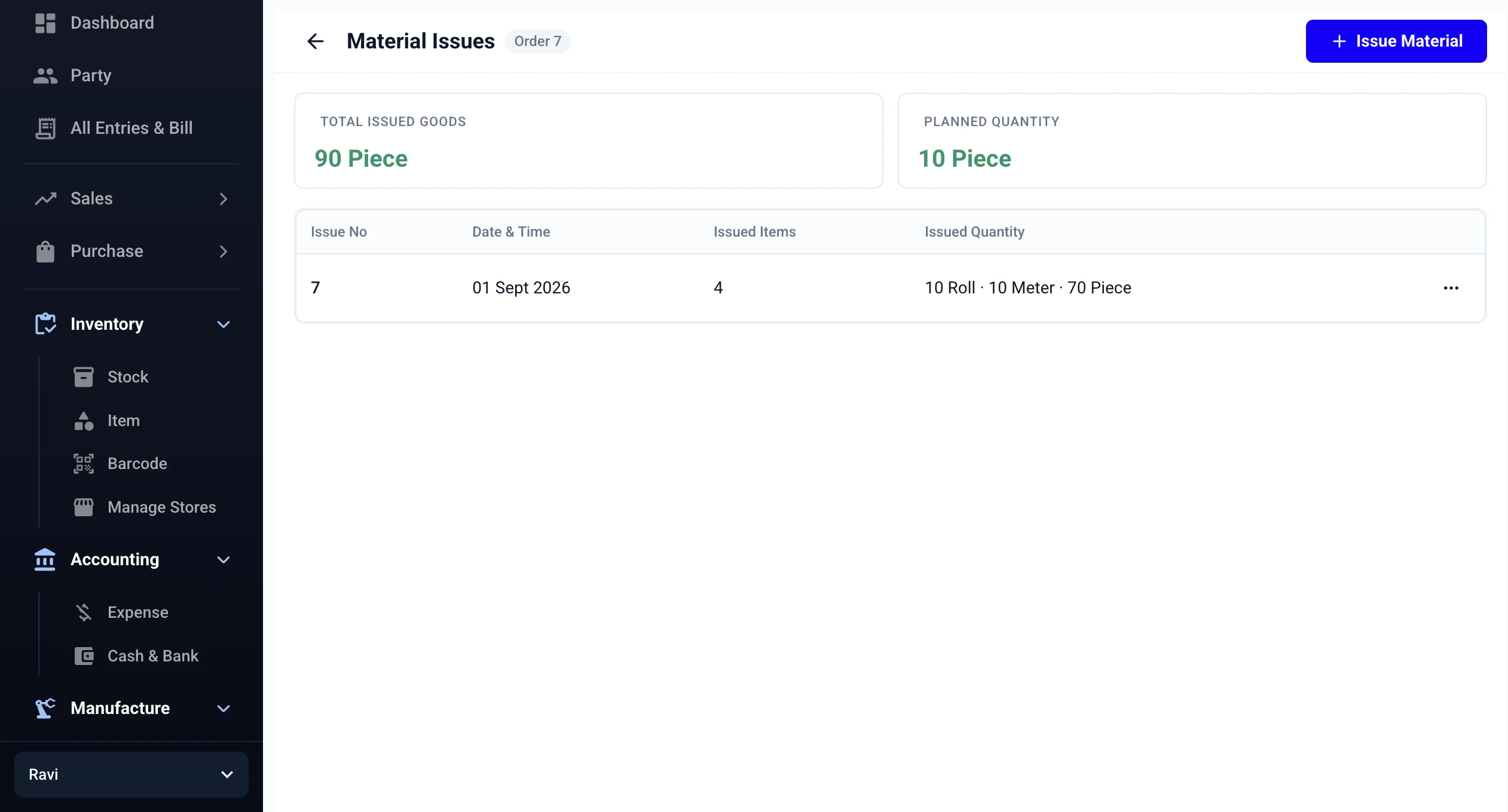
This history screen is useful when a contractor says that only part of the material arrived: compare the saved issue with the challan and the store person’s handoff note before creating another issue.
Check the material issue history before calling the job worker
When a contractor says, “Only this much material came,” do not begin with the finished-goods quantity. First compare the call with the issue history:
- Find the job-work order and the relevant issue number.
- Match the date and material names with the challan or handoff note.
- Compare the issued quantity with the person’s physical or signed record.
- Ask whether another issue was sent later and recorded under the same order.
This avoids a common mix-up: treating the first dispatch as the total material sent. It also gives the owner a clear question for the store person or job worker instead of asking, “How much did we send?” from memory.
Receive finished goods in separate piles
When garments, polished panels, stitched covers or packed items return, put the returned goods on a table and separate them before entering anything. Use three clear piles:
- Accepted: pieces that your responsible person is willing to receive as finished goods.
- Rejected: pieces that are not accepted in their current condition.
- Rework sent: pieces going back to the job worker for correction.
The exact acceptance rule belongs to the owner, production supervisor or quality person. Stock Register does not inspect the cloth, stitching, polish or finish. Do not add rejected or rework pieces to the accepted pile just to make the planned quantity look complete.
In Stock Register, use Receive Goods for the job-work order. Confirm the planned quantity and remaining-to-receive figure, enter the receipt date, and record accepted quantity, rejected quantity and rework sent. Review the processing charge and due amount before saving. Keep the physical piles and the saved receipt aligned.
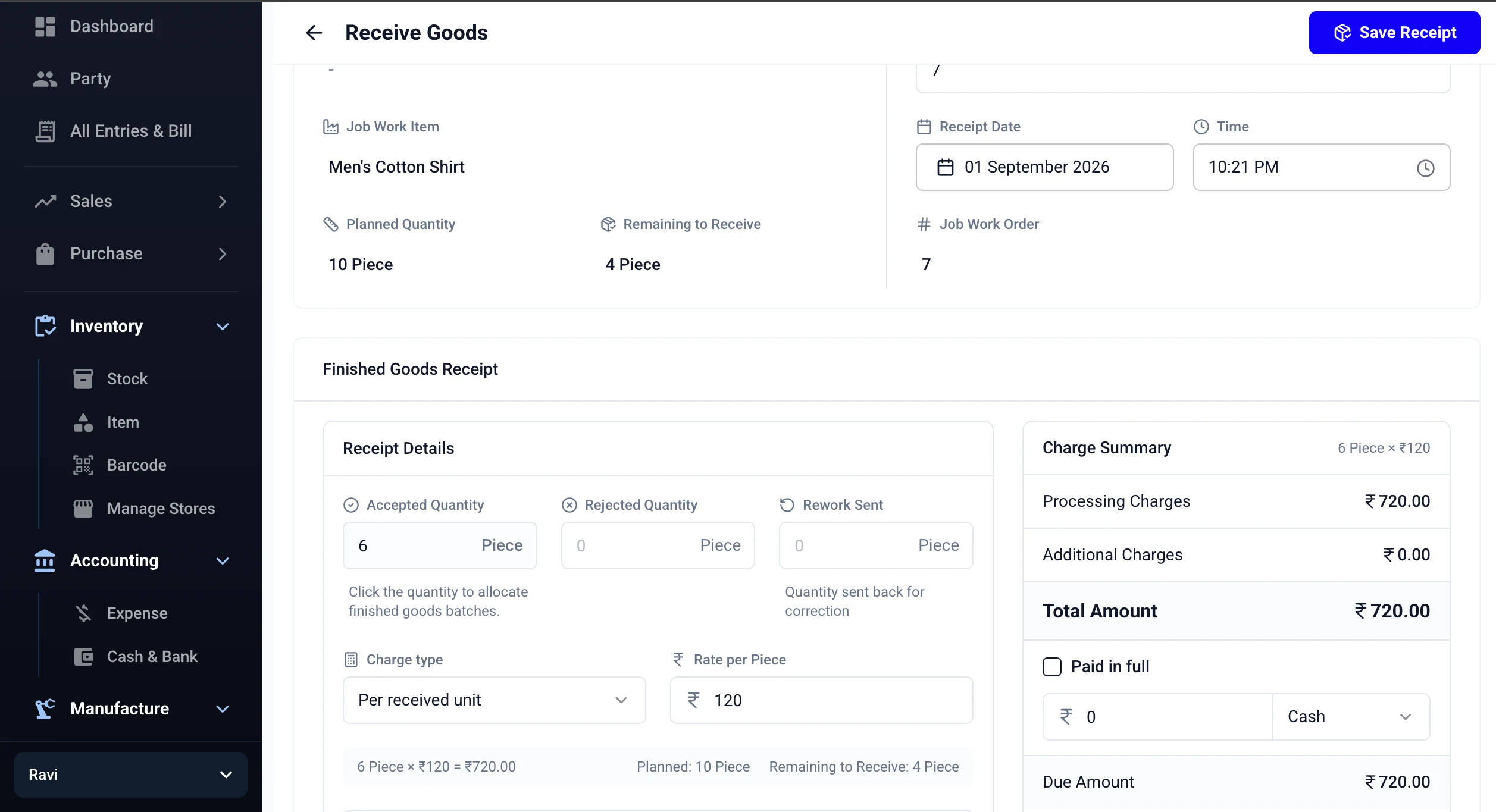
The screenshot is product evidence for the fields available in the receipt record. It is not proof that the app inspected the returned goods. Your team still counts each pile, decides whether accepted pieces are saleable and follows up on rework.
Use one worked example to close the open quantity
Suppose a stitching job worker has an order for 100 cotton shirts. The unit sends 70 shirts’ worth of fabric and trims on Monday, then the remaining material on Wednesday. The two material issues are recorded against the same order. On Friday, 86 shirts come back fit to store, 4 are rejected and 10 are sent for rework.
Receipt check for the 100-piece order
Receipt check for the 100-piece order
| Receipt bucket | Quantity | What happens next |
|---|---|---|
| Accepted | 86 pieces | Put the finished goods away after the physical check |
| Rejected | 4 pieces | Keep separate and assign the owner’s return or replacement decision |
| Rework sent | 10 pieces | Record the follow-up date with the job worker |
| Accounted for in this handoff | 100 pieces | Keep the order open or close it only when the owner confirms the next action |
Accepted
- Quantity
- 86 pieces
- What happens next
- Put the finished goods away after the physical check
Rejected
- Quantity
- 4 pieces
- What happens next
- Keep separate and assign the owner’s return or replacement decision
Rework sent
- Quantity
- 10 pieces
- What happens next
- Record the follow-up date with the job worker
Accounted for in this handoff
- Quantity
- 100 pieces
- What happens next
- Keep the order open or close it only when the owner confirms the next action
The receipt is not “100 received.” It is 86 accepted + 4 rejected + 10 rework = 100 pieces accounted for in this handoff. Whether you can close the order depends on what the owner agreed with the job worker: the 86 accepted pieces can move to the finished-goods shelf, the 4 rejected pieces need a decision, and the 10 rework pieces need a follow-up date.
If only 86 pieces return and the other 14 are not identified as rejected or rework, keep the order open. Compare the goods receipt history with the material issue history, then ask the job worker for the missing quantity rather than changing the receipt to 100.
The saved receipt is only one part of the stock check: it records the quantities and charge your team enters, while your team still needs a physical count, a clear owner for rejected goods and a follow-up for anything not received.
Calculate processing charges from the agreed basis
Job workers may charge per received piece, per operation or by another agreed basis. Keep the basis written on the order or supplier note before the goods arrive.
For the 86 accepted shirts in the example, if the agreed rate is ₹18 per received piece, the charge on that basis is ₹1,548. If your agreement charges all received pieces, use the agreed count—not an assumption that accepted pieces and total returned pieces are always the same. Confirm the rate, charge type and bill with the job worker.
When saving a receipt in Stock Register, select the charge type, enter the rate where required and review Processing Charges, Total Amount and Due Amount. Goods Receipt history then gives the owner a place to review receipt numbers, dates, received quantities, total charges and paid amounts. These are saved transaction values; they do not replace checking the contractor’s bill or deciding whether a disputed quantity should be paid.
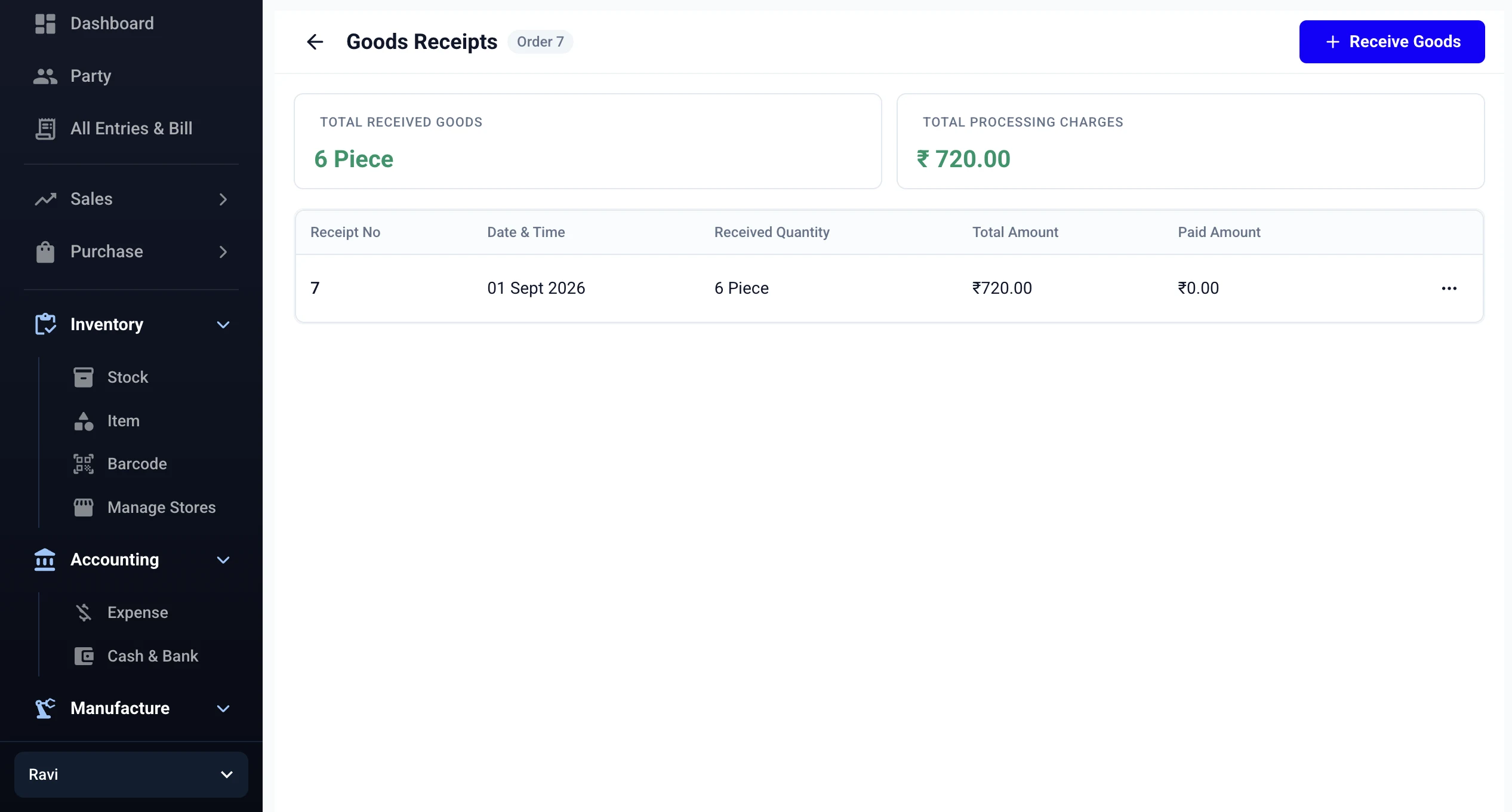
Use the history after saving a receipt to answer three separate questions: what came back, what charge was saved, and what amount has been paid. Keep a copy of the contractor’s bill with the receipt when the agreed charge basis differs from the default entry.
Keep the pending quantity visible
At the end of each receipt, write the next action beside the order. Use the pending-quantity follow-up table to keep the physical check, owner and next action together on a phone or desktop.
Pending-quantity follow-up
Pending-quantity follow-up
| Situation | First check | Next action |
|---|---|---|
| Accepted pieces are ready | Physical count and finished-item name | Put them away and make them available for the next stock decision |
| Rejected pieces are separated | Reason and owner of the decision | Agree return, replacement or another action with the job worker |
| Rework pieces are sent back | Quantity and return date | Follow up with the job worker and keep the rework note with the order |
| Planned quantity is not fully accounted for | Issue history, receipts and remaining quantity | Keep the order open and assign the next follow-up |
Accepted pieces are ready
- First check
- Physical count and finished-item name
- Next action
- Put them away and make them available for the next stock decision
Rejected pieces are separated
- First check
- Reason and owner of the decision
- Next action
- Agree return, replacement or another action with the job worker
Rework pieces are sent back
- First check
- Quantity and return date
- Next action
- Follow up with the job worker and keep the rework note with the order
Planned quantity is not fully accounted for
- First check
- Issue history, receipts and remaining quantity
- Next action
- Keep the order open and assign the next follow-up
In Stock Register, use the job-work order list and goods receipt history to find the saved quantities. The list helps you see the record; it does not decide whether a missing piece is still with the contractor, lost in transport or rejected on the shop floor. That decision needs the owner and the person who handled the handoff.
Give each person one clear job
Job work becomes easier to follow when the handoff has an owner at each point:
- The store person counts raw materials and records the issue number and quantity.
- The production or purchase person confirms the job worker, item and planned quantity.
- The receiving person separates accepted, rejected and rework pieces before data entry.
- The owner or supervisor checks the receipt, processing charge and pending quantity.
- The person speaking to the job worker carries the open question and next date.
For a one-person unit, these are five checks done by the same owner. For a staff-run unit, write the responsible name on the paper note or shared message. “Someone will check” is not a follow-up plan.
Common job-work stock mistakes
- Sending a second material issue but leaving it in a separate notebook.
- Comparing finished goods received with the planned quantity without checking what was actually issued.
- Entering all returned pieces as accepted before separating rejected and rework pieces.
- Treating rejected or rework pieces as finished stock available for sale.
- Saving the receipt with the wrong job-work order or finished item.
- Forgetting the processing-charge basis and arguing about the bill after saving.
- Calling an order complete because the screen looks full while pieces are still at the job worker.
The fix is usually a short pause at the gate: identify the order, count the physical pile, record the right quantity, and name the next person who owns the open point.
A five-minute receipt check
Before the vehicle leaves or the returned goods are put away, confirm:
- job worker and job-work order;
- finished item and unit;
- receipt number and date;
- accepted, rejected and rework quantities;
- planned quantity and remaining-to-receive figure;
- processing-charge type, rate and due amount;
- next follow-up for rejected, rework or still-pending goods.
If the numbers do not make sense, hold the entry long enough to ask the person who counted the goods. A clean saved record is useful only when it agrees with what is on the table.
Copy this job-work handoff note
Use one line for every material issue and one line for every finished-goods receipt. Keep the note with the challan, bill or shared order message until the order is closed:
JOB-WORK HANDOFF
Order / job worker / finished item: ______________________________
Planned quantity / unit / expected receipt date: _________________

MATERIAL ISSUE
Issue no. / date / material / quantity / unit: ___________________
Store person / job-worker acknowledgement: ______________________

FINISHED-GOODS RECEIPT
Receipt no. / date: _____________________________________________
Accepted: ______  Rejected: ______  Rework sent: ______
Charge basis / rate / total / due: ______________________________

OPEN POINT
Quantity still open / owner / next follow-up date: ______________
This note is a handoff control, not a replacement for the saved order, issue or receipt. The app keeps the transaction history; the note preserves the physical count, acknowledgement and next action that can otherwise disappear in a call or chat.
When to use the manufacturing guide instead
This article is about material moving to an outside job worker and finished goods coming back through receipts. If the work happens inside your own shop or plant and you need to record a production run that deducts recipe materials and adds finished goods, use the manufacturing stock guide. If you are deciding whether the product’s job-work screens fit your business, the Job Work Management feature page is the better next read.
Start with one real order
Do not enter every old contractor record on the first day. Start with one open job-work order: confirm the job worker and planned quantity, record the next material issue, then use the receipt fields when goods return. Review the saved issue history, goods receipt history and processing charge against the paper note.
That first order tells you whether the names, units and handoffs match the way your unit actually works. Once one order is clear, use the same check for the next job worker or finished item.
FOLLOW ONE ORDER
From material issue to receipt
Plan
Set the job worker, finished item and planned quantity.
Issue
Send each raw material against the order and issue number.
Receive
Separate accepted, rejected and rework quantities.
Close
Check pending quantity, charges and the next owner.
The record shows what was entered. Your team still counts the physical material and decides whether returned goods can be sold or need rework.
What Stock Register records
- Job-work orders with the job worker, finished item, planned quantity and expected receipt date.
- Raw-material issue quantities and issue history linked to the order.
- Finished-goods receipts with accepted, rejected and rework quantities, processing charges and receipt history.
Stock Register records the quantities and charges your team enters. It does not physically count cloth or garments, decide whether a piece passes inspection, or settle a dispute with the job worker.
Related resources
Frequently Asked Questions
How do I track raw materials sent to a job worker?⌄
In Stock Register’s Job Work Management screens, create or open the job-work order, confirm the job worker and finished item, then record each issue number, date and raw-material quantity against that order. Keep the issue history with the challan or handoff note so the next receipt can be checked against what left your godown.
How do I calculate job-work pending quantity?⌄
In Stock Register’s Job Work Management screens, start with the planned finished quantity and compare it with finished goods received so far. Also check rejected and rework pieces before deciding what is truly still due. Stock Register shows planned, received and remaining quantities from the entries your team saves; your team confirms the physical count.
Can job-work receipts include rejected and rework quantities?⌄
Yes. In Stock Register’s Job Work Management screens, use Receive Goods to record accepted quantity, rejected quantity and rework sent for the returned finished goods. Separate the physical piles first, then save the receipt and keep the job worker responsible for the next correction clear.
How are job-work processing charges recorded?⌄
In Stock Register’s Job Work Management screens, when you receive finished goods, choose the charge type, enter the rate where required, and review processing charges, total amount and due amount before saving. The saved values are a record of the receipt; confirm the agreed rate and bill with the job worker separately.