Godown-wise staff access guide
Godown-Wise Stock Access: How to Give Staff the Right Inventory Permissions
A practical guide for Indian retailers, wholesalers, distributors, stockists, pharmacies, food businesses, manufacturers and multi-location merchants assigning staff access by shop and godown.
For Indian retailers, wholesalers, distributors, FMCG stockists, pharmacies, food businesses, manufacturers and multi-location merchants who need to give staff the right shop and godown inventory access.
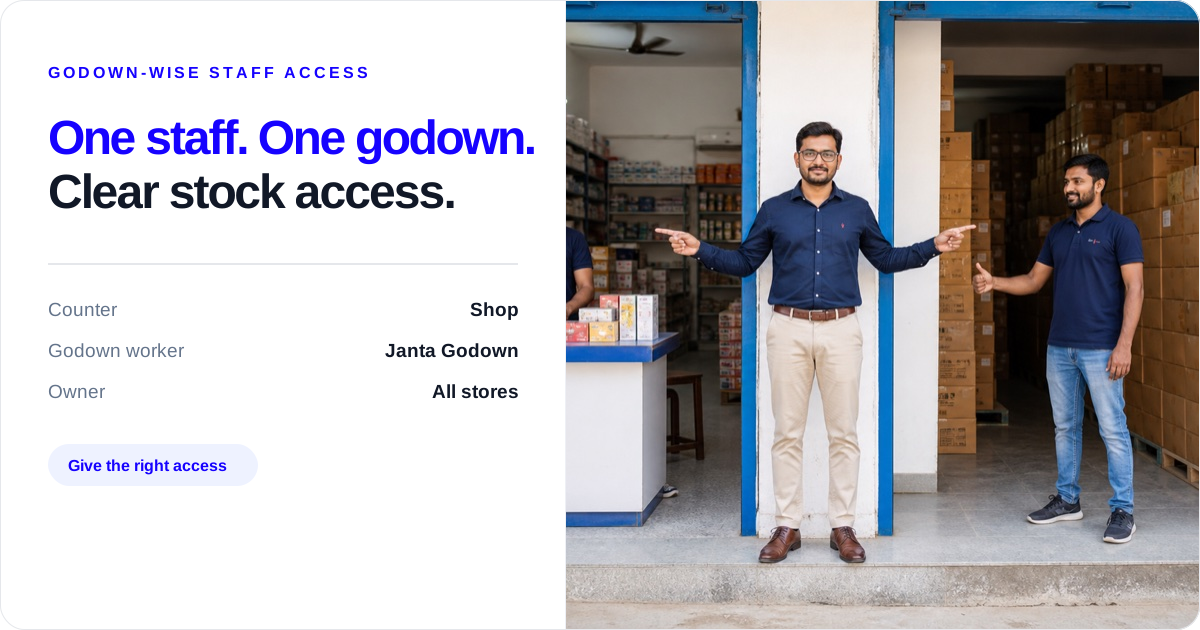
QUICK ANSWERS
Set the right access in four checks
Where should this person work?
Name the exact shop, branch or godown before choosing a role.
What should they be able to do?
Give only the sales, purchase, transfer or adjustment access needed for the job.
What should the owner test?
Log in as the staff member and save one real entry for the assigned location.
What stays with the owner?
Physical counting, inspection, unusual-entry follow-up and wider access changes.
Give each staff member access to the shop or godown where they work, choose the narrowest role that covers their job, and test one real sale, purchase, transfer or adjustment before handing over the account. This helps a retailer, wholesaler, distributor, FMCG stockist, pharmacy, food business, manufacturer or multi-location merchant keep each branch working on the right stock while the owner keeps the wider view.
The aim is simple: the counter person should not need every godown, the godown worker should not need every report, and the owner should be able to see what each person can do. Access settings reduce wrong-location entries and confusion. They do not replace counting cartons, checking inward goods, inspecting an outward dispatch or supervising staff.
Before staff begin entering quantities, use the opening-stock entry guide to settle the item, unit, location and starting balance. If two staff members report different store quantities, check the warehouse and store stock mismatch guide.
Why godown-wise staff access matters
Picture a business with a shop in the market, a dry-goods godown nearby and a second branch in another area. A sales operator at the shop needs the stock left at that shop before billing. A godown worker needs to receive and prepare goods. The owner needs to see all locations and follow up when an entry looks wrong.
If everyone uses the same login or sees every location, a few avoidable problems follow:
- a sale is entered against the wrong branch;
- a purchase is received into the shop instead of the godown;
- a transfer is sent to a location the worker does not handle;
- a stock adjustment is entered without the owner knowing who made it; or
- a counter person sees purchase prices and profit that they do not need for billing.
The fix is not to hide all stock from staff. It is to match each person’s store access and role to the work they actually handle.
How to give staff access to one godown or branch
Start with the person, not the menu. Write down their usual location, their daily entries and the information they need to see. Then use this four-check setup:
- Name the location. Write the shop, branch or godown where the person normally works. If they work at two locations, write both instead of giving access to every store.
- Choose the smallest useful role. A counter person who only bills does not need purchase-price or profit access. A receiving person may need purchase entry access. A branch manager may need wider store-level access.
- Test one entry. Use a staff login and check the selected store before creating a sale, purchase, transfer or stock adjustment. Confirm the item, quantity and location before saving.
- Tell the owner what remains their job. Staff still count and inspect goods. The owner still decides whether an unusual adjustment, return, disposal or supplier follow-up is needed.
In Stock Register, the owner can add staff with a name, mobile number, selected store and role. The Staff Roles & Access page shows store-wise assignment, including the option to give one person an admin role in one godown and an operator role in another. Keep the assignment limited to the places where that person works.
What each staff member should see and update
There is no single correct setting for every business. Use the table below as a starting point, then test the actual account.
| Person | Should see | May update | Owner checks |
|---|---|---|---|
| Counter person | Items and stock left at the assigned shop; selling details needed for billing | Sales entries for the assigned store | Sample bills, wrong-store entries and unusual quantities |
| Godown worker | Items, stock left and inward goods at the assigned godown | Purchase, stock in/out, orders or delivery challan entries only when the role includes them | Physical quantity, supplier bill and receiving location |
| Dispatch staff | Items available at the dispatch godown and the order details they need | Sale, stock out, sales order or delivery challan entries only when the role allows them | Picked quantity, destination and outward document |
| Branch manager | Sales, purchases, inventory and reports for the assigned store when given Store Admin access | Create, edit and delete entries for that assigned store | Closing stock, adjustments, transfers and staff activity |
| Owner | All stores, roles, entries, reports and business settings | Changes to access, staff and wider business records | Location totals, unusual entries and the next action |
The first four rows are business practice. The exact actions available in Stock Register depend on the selected role and the stores assigned to that staff account. Do not assume that a person needs every action simply because they work near the stock.
Counter person, godown worker and owner: who does what?
Counter person: bill against the shop stock
Give the counter person the shop or branch they bill from. Their first check before a sale is the item and stock left at that location. They should not choose another godown just because it has more stock unless the owner has given them that location and the business has a clear dispatch arrangement.
Stock Register’s Sales Operator role gives create access for sales, stock out, sales orders and delivery challans in the assigned store or godown. The counter person can see the stock needed for billing, while purchase, stock in and wider store changes stay with the right role.
At the end of the day, the owner or branch manager should sample a few bills: item, quantity, shop, price and the staff member who added the entry. A staff login is not a substitute for counting the fast-moving items at the counter.
Godown worker: receive, pick and hand over the right goods
The godown worker needs the location where cartons are received, stored and picked. Before inward entry, they should match the supplier bill, item, unit and quantity. Before outward dispatch, they should match the order, item, quantity and destination.
Stock Register’s Sales Purchase Operator role gives create access for sales and purchase, stock in and stock out, sales and purchase orders, and delivery challans in the assigned store or godown. That role may suit a person who handles both billing and receiving. If the worker only picks goods or counts cartons, give them Stock Viewer access instead of entry access.
The Stock Viewer role is for a person who needs to see stock but must not create entries. Assign it to a supervisor, helper or owner’s assistant who checks stock at one or more locations without recording sales, purchases, transfers or adjustments.
The owner should make one point clear: stock access tells a worker which location they can work in; it does not decide whether a carton is accepted, returned, held aside or sent to a customer.
Owner or branch manager: keep the wider stock view
The owner needs the wider view to compare stores and follow up. A Store Admin role gives complete create, edit and delete access for staff in the assigned store or godown. This can suit a trusted branch manager, but the owner should still check the access list when a person changes location or leaves the business.
Stock Register also records the name of the person who created an entry. This gives the owner a useful starting point when checking a sale, purchase, transfer or adjustment. It does not prove that the physical goods were counted or that the entry was correct.
Sales, purchases, transfers and adjustments: give the right permission
Use the event to decide who should record it:
- Sale: the counter person can record the sale for the assigned shop when their role permits sales entries. Check the customer order, item and quantity before saving.
- Purchase: the person receiving goods can record the purchase when their role permits purchase entries. Match the supplier bill and the godown before saving.
- Transfer: the staff member moving stock should have access to the source and receiving locations needed for the transfer. Stock Register’s Stock Transfer page states that staff can transfer to godowns they have access to. Check the source, destination and quantity on the transfer record. When the transfer needs a physical dispatch-to-receipt check, use the Inter-Godown Transfer Checklist before changing the saved quantity.
- Adjustment: use it only for a stock change outside a normal sale or purchase, such as damage, wastage, a found item or a count correction. The person should count first and write the reason; the owner should decide whether the adjustment is appropriate.
Do not give a broad role just to avoid one conversation. If the person’s work changes, update the role or store assignment. A role that was right for a godown worker may be too broad after they move to the counter.
Example: one owner, two godowns and three staff members
Example figures: Meera Wholesale has a shop, Janta Market Godown and a second branch. Meera is the owner. Arjun works at the shop counter, Salim receives cartons at Janta Market Godown, and Neha manages the second branch.
| Staff member | Store access | Role starting point | Entry to test |
|---|---|---|---|
| Arjun | Shop only | Sales Operator | One sale for 6 boxes of tea |
| Salim | Janta Market Godown only | Sales Purchase Operator if he records purchases | One purchase inward for 20 cartons |
| Neha | Second branch; another store only if needed | Store Admin for that assigned store | One sale and one stock check |
| Meera | All stores | Owner account | Review each entry and location |
Before the test, Meera checks that the item exists at the selected location and that the unit is correct. After the test, she checks the saved entry, quantity, location and “Added by” name. If Salim needs to send stock to the second branch, she gives him the required access first and checks the transfer destination. She does not assume that seeing a location means the physical cartons have been counted.
If Arjun later helps at Janta Market Godown, Meera can add a role for that store instead of opening every location. If Salim stops handling purchases, Meera can change his role. If Neha leaves, Meera can remove her role from that store or delete her staff access completely.
How to stop one branch changing another branch’s stock
Store access helps, but the setup needs a small handover. Use this list when adding a person or moving them to another branch:
- List the stores: write the exact shop and godown names, not just “Jaipur branch” or “warehouse”.
- List the entries: sale, purchase, transfer, adjustment or view-only stock check.
- Check the role: choose Store Admin, Sales Operator, Sales Purchase Operator or Stock Viewer based on the work the person actually does.
- Test a real location: log in as the staff member and open the assigned store. Try the entry they will use most often.
- Check the saved record: confirm item, quantity, date, store and creator name.
- Write the handoff: tell the next person who checks physical goods, supplier bills, transfers and adjustments.
If a staff member sees a location they should not use, stop the handover and correct the store assignment before regular entries begin. If a staff member cannot complete a needed entry, do not share the owner login. Review the role and give the smallest additional access needed.
What access settings do not do
Access settings help decide which staff account can work with which store. They do not inspect cartons, detect leakage, count pieces, confirm a supplier bill, approve a return, decide disposal, recover money from a supplier or settle the accounting treatment of a loss.
The owner or responsible manager should still:
- count stock during inward, dispatch and selected closing checks;
- compare the item and quantity with the bill or order;
- check an unusual adjustment or transfer with the person who entered it;
- keep damaged, expired or questionable goods aside under the business’s own rules; and
- speak with the supplier, quality team or CA when that decision needs their input.
Stock Register records the entries your team saves. The physical check and the business decision stay with your team.
Weekly staff-access check
Once a week, or whenever someone changes location, the owner can ask:
- Does every staff member still work at the store assigned to them?
- Does the counter person have only the stores needed for billing?
- Does the receiving person have the purchase access needed for inward goods?
- Can the transfer person select only the source and destination locations they handle?
- Are stock adjustments carrying a clear reason and quantity?
- Do a few entries show the expected “Added by” staff name?
- Did any person leave, change branch or take on a new responsibility?
The owner should also physically check a small set of items. A clean access list with an uncounted godown can still leave the stock record wrong.
What Stock Register records for staff and godown access
The current Staff Roles & Access and Multi-Godown pages show that Stock Register can:
- assign staff to selected stores or godowns;
- give the same person different roles at different stores;
- provide Store Admin, Sales Operator, Sales Purchase Operator and Stock Viewer roles with different listed access;
- give Store Admin complete create, edit and delete access in the assigned store or godown;
- give Sales Operator create access for sales, stock out, sales orders and delivery challans in the assigned store or godown;
- give Sales Purchase Operator create access for sales and purchases, stock in and out, sales and purchase orders, and delivery challans in the assigned store or godown;
- give Stock Viewer stock visibility without create access in assigned stores or godowns;
- remove a role from one store while keeping another store assignment, or delete all staff access;
- show the staff member who created an entry; and
- limit stock transfers to godowns the staff member can access, as described on the Stock Transfer feature page.
For exact role settings, see Staff Roles & Access Control. For the location setup, see Multi-Godown Management. For stock movement and the item record, see Stock Tracking and Stock Transfer.
Match the job to the access
| Staff job | Give access to | Test next |
|---|---|---|
| Counter person at one shop | That shop; sales and stock view needed for billing | One sale with item, quantity and shop |
| Godown worker receiving goods | That godown; purchase access only when needed | One purchase inward against the supplier bill |
| Staff preparing a transfer | Source and allowed receiving godown | Source, destination and quantity |
| Branch manager | Assigned store with the Store Admin role when appropriate | One sale, one report and one stock check |
Counter person at one shop
- Give access to
- That shop; sales and stock view needed for billing
- Test next
- One sale with item, quantity and shop
Godown worker receiving goods
- Give access to
- That godown; purchase access only when needed
- Test next
- One purchase inward against the supplier bill
Staff preparing a transfer
- Give access to
- Source and allowed receiving godown
- Test next
- Source, destination and quantity
Branch manager
- Give access to
- Assigned store with the Store Admin role when appropriate
- Test next
- One sale, one report and one stock check
What Stock Register records
- Selected store or godown assignment, role and listed staff access.
- Store Admin, Sales Operator, Sales Purchase Operator and Stock Viewer role permissions described on the Staff Roles & Access page.
- Store Admin has complete create, edit and delete access for staff in the assigned store or godown.
- Sales Operator and Sales Purchase Operator have create access for the sales, purchase, stock, order and delivery-challan entries listed for their roles in the assigned store or godown.
- Stock Viewer can view stock in assigned stores or godowns without create access.
- Entry creator name and stock-transfer access to godowns the staff member can access, as documented by the first-party feature pages.
The product records what the team enters. The owner and staff must still count, inspect, approve, hold aside, dispose of, return or discuss goods under the business’s own rules.
Related resources
Frequently Asked Questions
How do I give staff access to one godown only?⌄
Give the staff member access to the one shop or godown where they work, select the smallest role they need, and test one sale, purchase or stock entry before handover. Stock Register’s Staff Roles & Access page shows store-wise assignment and removal of a role from one store. The owner should still check the physical stock and location.
Which role should a counter person get for inventory permissions?⌄
A counter person usually starts with Sales Operator access for the shop where they bill. Stock Register lists create access for sales, stock out, sales orders and delivery challans in the assigned store or godown. Test the account with one real sale and keep purchase, transfer or adjustment work with the person responsible for it.
Can one staff member have different roles at different godowns?⌄
Yes. Stock Register’s Staff Roles & Access page shows that the same staff member can have an admin role in one godown and an operator role in another. Assign only the stores where the person works, then test each location separately. When the person changes branch, update the assignment before the next entry.
Can staff record purchases, transfers or stock adjustments?⌄
The Sales Purchase Operator role can create sales and purchase, stock in/out, sales and purchase order, and delivery challan entries in the assigned store or godown. Transfer and adjustment access should be checked in the staff account before handover; do not assume it from the role name. A staff member should count first, and the owner should check the saved entry.
How can an owner check who entered inventory changes?⌄
Open the saved entry and check its “Added by” staff name, along with the item, quantity, date and store. Stock Register’s Staff Roles & Access page documents the creator name on entries. Use that record to start a follow-up; it does not replace checking the carton, bill or physical count.
Does staff access replace physical stock checks?⌄
No. Staff access controls which stores and listed actions a person can use; it does not count cartons, inspect goods or decide whether a stock adjustment is correct. The owner should compare selected entries with the shop or godown, supplier bill, order and physical quantity. See Stock Tracking for the recorded stock entry and item history.