Manufacturing
Solo ownerRecipes/BOM, raw materials, production entries, costs and manufacturing reports.
₹4,000 / year
₹3,000 / year
Owner (1 User) · Just ₹250/month · excl. GST
Start Free TrialNo advance payment · No setup fee
Stock Register’s manufacturing process software lets Indian manufacturers save a reusable production stage sequence, with named steps and optional output items.
Create a manufacturing process template for cutting, stitching and packing, then reuse it in Multi-stage Manufacturing jobs. Available in Manufacturing Pro.
Already have your stages ready? Track quantities and progress in Multi-stage Manufacturing →
Keep the production instructions reusable. Record what was actually made separately, against a manufacturing job.
The same stages get typed again
A repeat production job needs the same sequence. Save that sequence under a clear name and reuse it instead of rebuilding the stage list.
Not every step creates stock
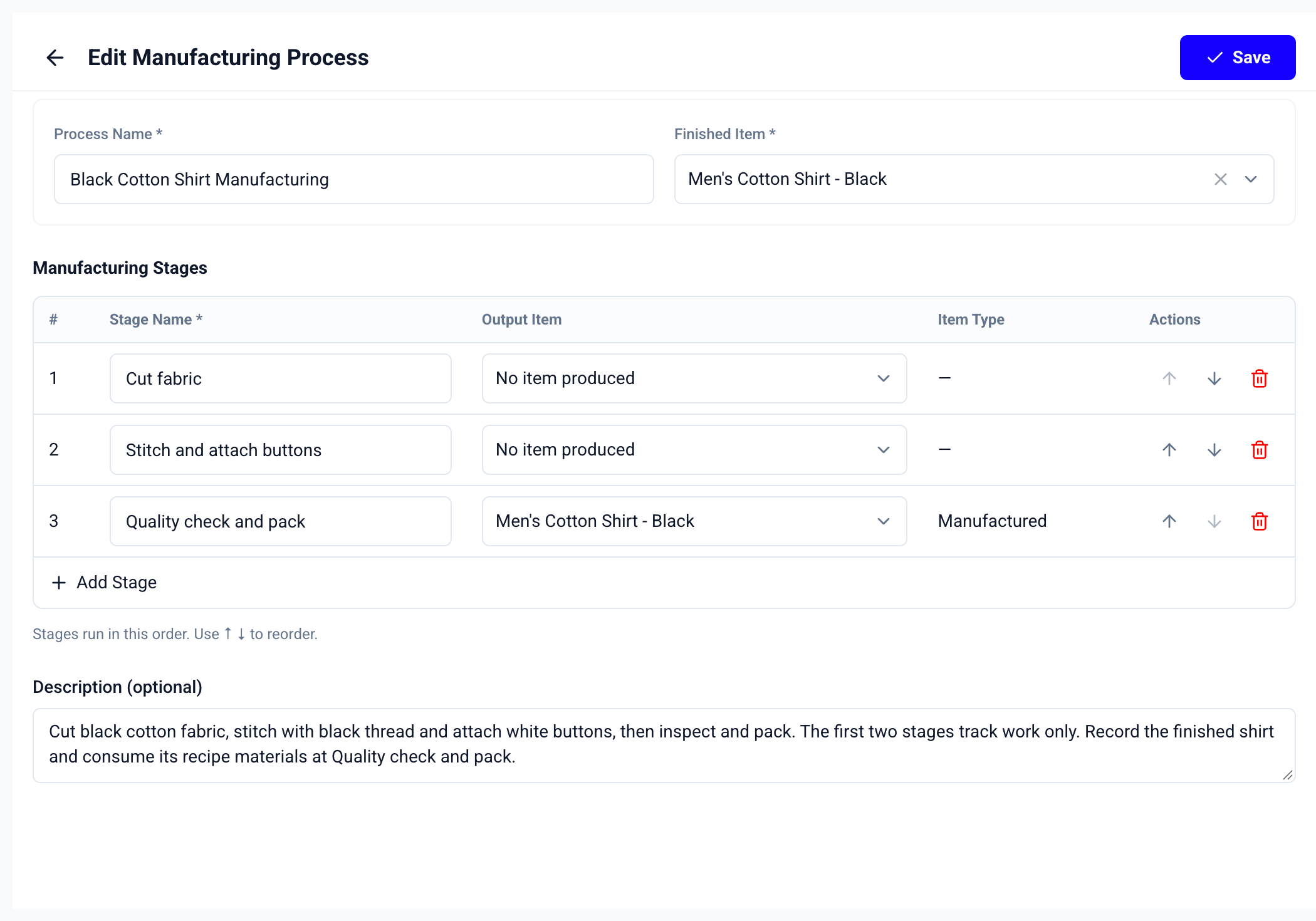
Cutting or checking may only track work. Leave the Output Item empty for a work-only stage; choose an item when the stage produces inventory.
A saved setup looks like completed work
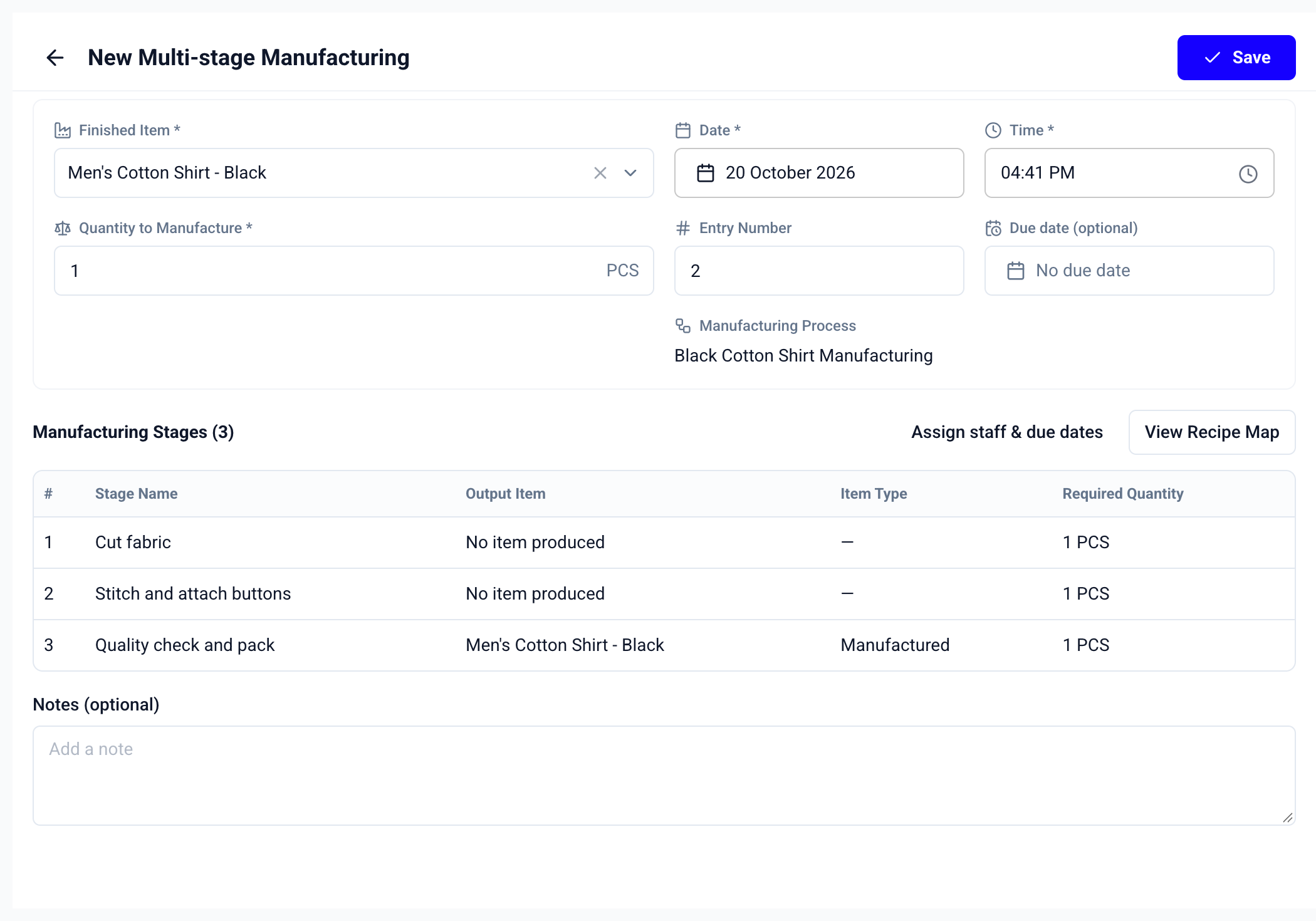
A Manufacturing Process defines the stages. Actual quantities and stage completion belong to the Multi-stage Manufacturing job, not to the saved setup.

Prepare the sequence once, then use it when the next production job starts.
Open Processes under Manufacture and create a new Manufacturing Process for the finished item.
Use a clear name your team will recognise when creating the next production job.
Name each step in the order the team carries out the work.
Select an Output Item where a stage produces inventory; leave work-only stages without an output item.
Use the up/down arrows to check the sequence, add an optional description and save.
Use the saved sequence in Multi-stage Manufacturing, enter the job quantity and record actual stage progress there.
Try Manufacturing Processes during the 7-day free trial. Saved processes and Multi-stage Manufacturing require Manufacturing Pro.
Compare Manufacturing Plans
Recipes/BOM, raw materials, production entries, costs and manufacturing reports.
Owner (1 User) · Just ₹250/month · excl. GST
Start Free TrialNo advance payment · No setup fee
Manufacturing with staff access, job work orders, material issues and goods receipts.
Owner + 3 Staff (4 Users) · excl. GST
Start Free TrialNo advance payment · Cancel anytime
Everything in Plus, with Multi-stage Manufacturing, Manufacturing Processes, approvals and activity history.
Owner + 3 Staff (4 Users) · excl. GST
Start Free TrialNo advance payment · Cancel anytime
All plans include inventory and GST/non-GST billing. Manufacturing Processes and Multi-stage Manufacturing are included only in Pro.
FAQs
Answers about saved stage setups, output items, recipes, staff access and Manufacturing Pro.
Still have questions?