Inventory Approval Software for Stock & Billing
For Indian wholesalers, distributors, retailers, and growing teams, staff may add stock or billing entries before the owner has checked them.
Stock Register is a stock approval system with one Approval Inbox for pending entries and Approval Settings for each entry type. The owner is the default approver; add the same or different staff approvers, remove an approval requirement, or change the approver any time.
To see who changed an entry and when, see Activity Timeline to follow entries by time and staff member.

Approval System Demo Video
See Staff Approval from Entry to Review
See how Stock Register routes staff-created stock and billing entries through Approval Settings and Approval Inbox for clear inventory approval software review.
Inventory & Billing Approval System in One Inbox
Keep the owner’s approval step visible without asking staff to maintain another register.
Common problems this solves
Staff entries need a clear check
An owner may hear about a stock-out, adjustment, or bill only after staff has already acted.
Pending entries appear together in Approval Inbox for review.
Different entries need different approvers
Sales, purchase, stock, and store entries may need the owner or a different staff member to check them.
Approval Settings lets you choose the approver for each entry type.
Pending entries are hard to follow
Without one list, staff and owners cannot easily tell what is waiting, approved, or still needs attention.
The inbox shows the entry, requester, type, date, and status in one place.
Approval Setting List — See Each Staff Member’s Entries
- See each staff member, the entry types requiring approval, and the approver assigned to that rule.
- The owner appears as the default approver, with staff approvers shown beside the rule when added.
- Use the three-dot menu to change or remove an approval setting any time.
- Create a new approval setting when another staff member needs a different check.
Approval Settings — Choose an Approver by Entry Type
- The owner is included as the default approver for every entry type.
- Use the same approver across entry types or choose different approvers for different work.
- Turn approval on or off for each entry type as your business needs change.
- Add more approvers or edit the approver list any time.
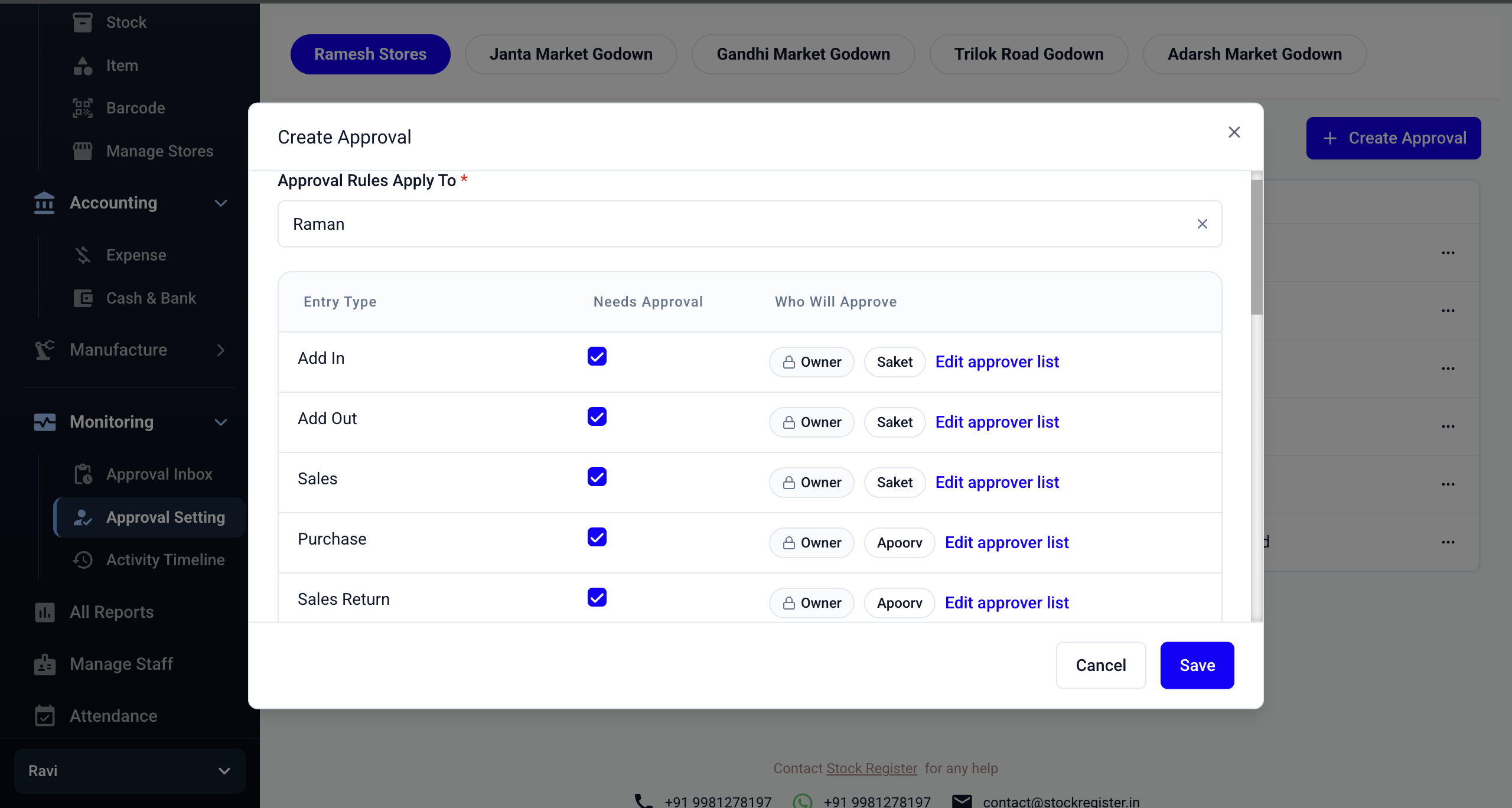
Same or different approvers for each entry type
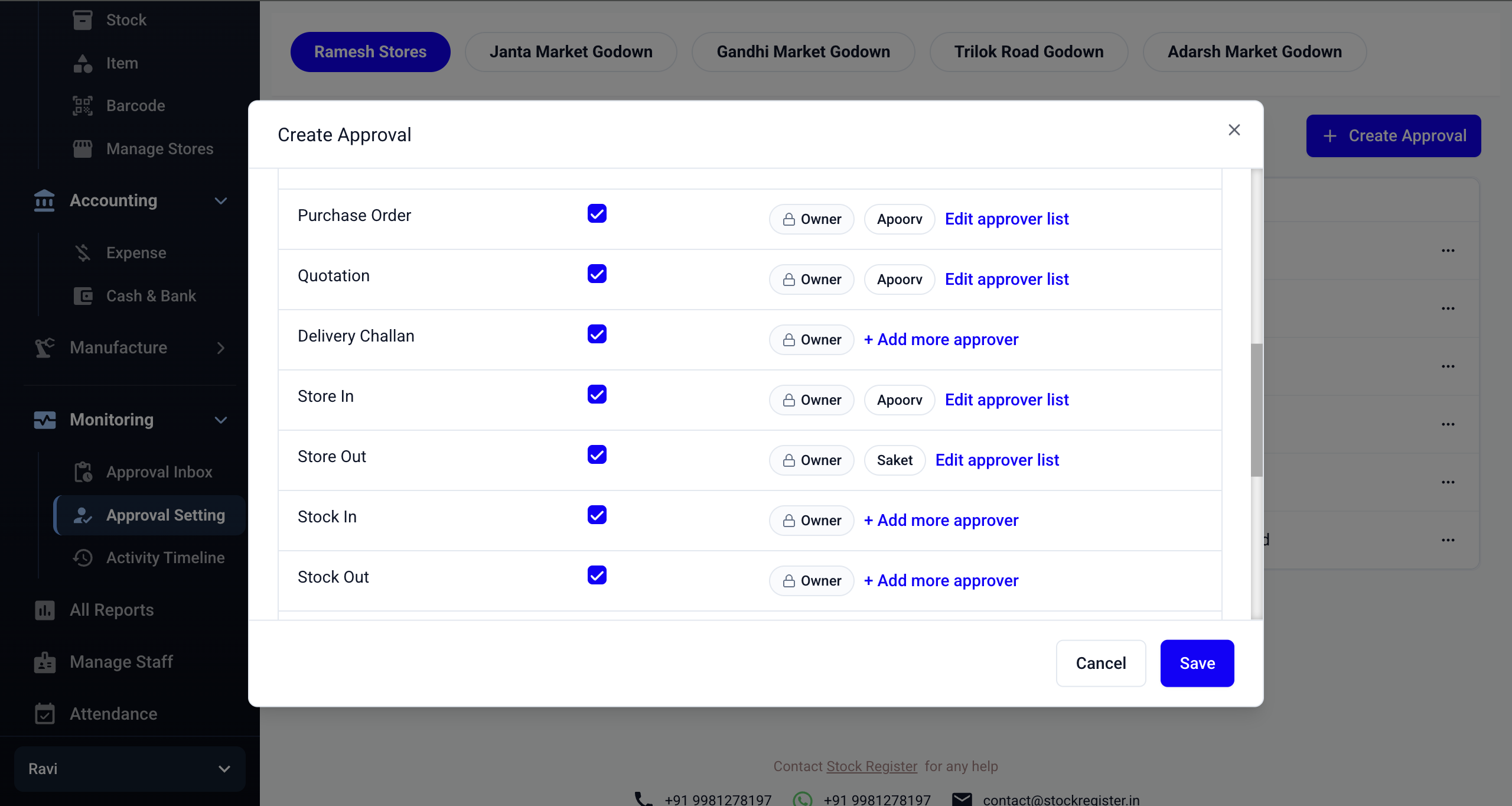
Approval can be set for each supported entry type
Change or Remove an Approval Setting Any Time
- Delete the approval need for an entry type when the owner no longer wants a check.
- Change the approver or approver list without rebuilding the whole setup.
- Update the setting for the same staff member, or edit another staff member’s setting from Approval Setting.
- Save Changes to apply the updated setting.

Staff-Submitted Entries — See Who Sent Each Entry
- See entries submitted by staff members in one list.
- Keep the staff member’s name beside each entry so the owner knows who sent it.
- Use the entry status to follow work that is still waiting for approval.
Inventory Approval System Features
How the Staff Approval System Works
Choose the entry types, set the approver, then keep each entry visible until the right person checks it.
Choose Entry Types
Create an approval setting and select the entry types that need a check, such as Sales, Purchase, or Stock Out.
Set the Approver
The owner is the default approver. Add the same or different staff approvers for each entry type as needed.
Review or Change the Setting
Staff entries appear in Approval Inbox. Change the approver or delete the approval need any time.
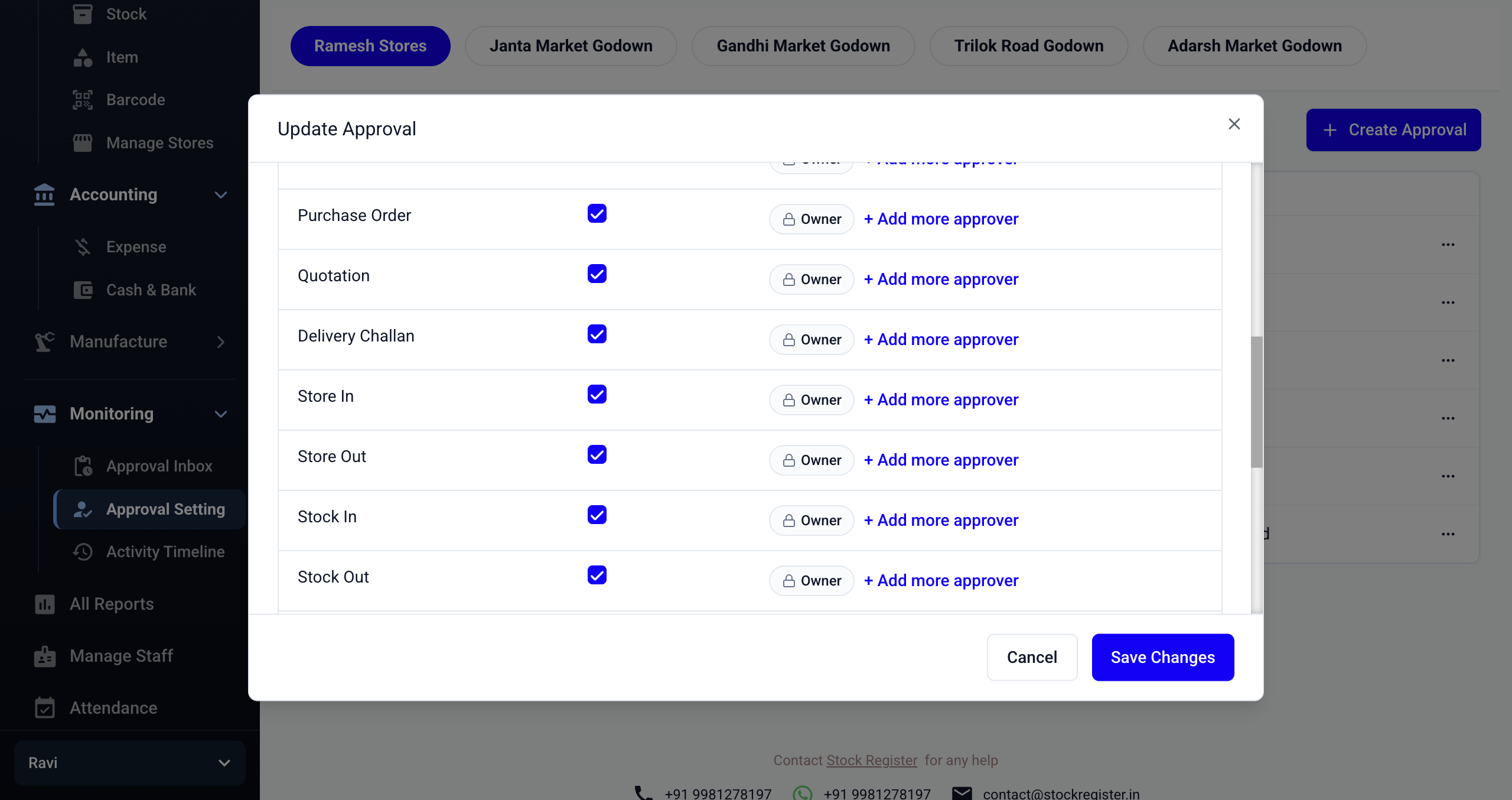
Keep Important Staff Requests in Sight
Try the Approval Inbox during the 7-day free trial and see how it fits your team’s daily entries.
The Approval System Is Included in Advance Pro
Basic Plus
Solo ownerBasic Plus for owner-operated businesses
1 User · Just ₹187/month · excl. GST
Start Free TrialNo advance payment · No setup fee
Advance Plus
Team planFor teams that need staff access and multi-store inventory
Owner + 3 Staff (4 Users) · excl. GST
Start Free TrialNo advance payment · Cancel anytime
Advance Pro
Owner + staffInventory approval, Approval Inbox, and Activity Timeline for growing teams.
Owner + 3 Staff (4 Users) · excl. GST
Start Free TrialNo advance payment · Cancel anytime
FAQs
Frequently Asked Questions
Direct answers about inventory approval software, staff entries, approvers, and Approval Inbox for Indian businesses.
Still have questions?