Godown-to-shop stock guide
How to Transfer Stock from a Godown to a Shop
How to record one godown-to-shop movement, count what arrives and confirm the quantity the shop can safely sell.
For Indian retailers, wholesalers, distributors and growing businesses that move stock between a godown, branch or shop.
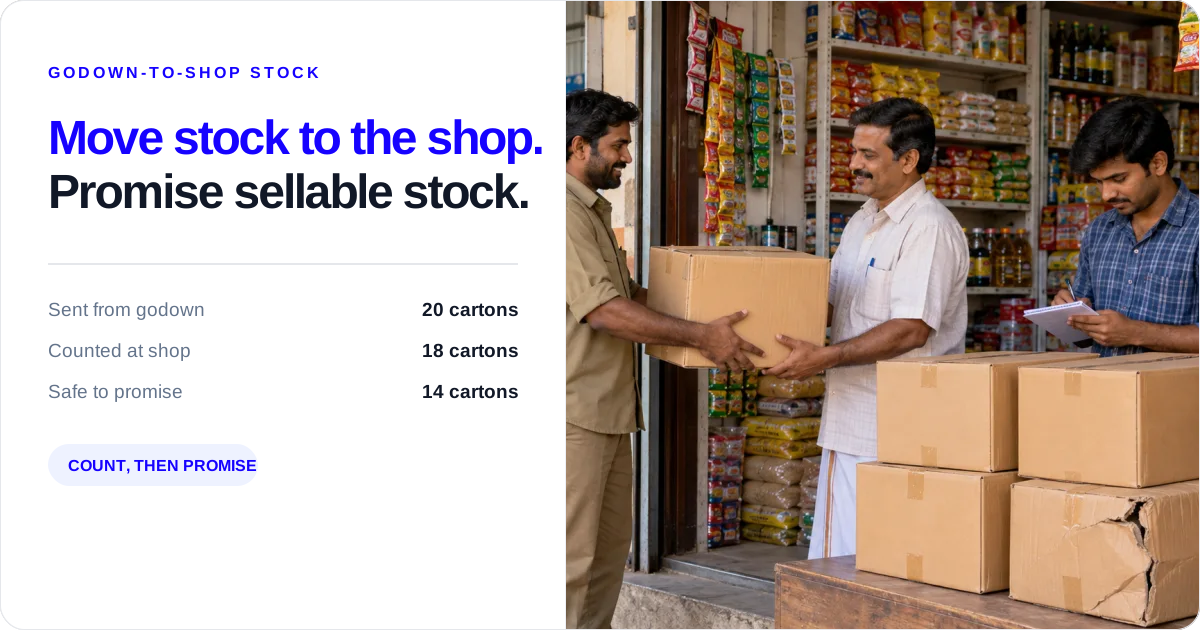
To transfer stock from a godown to a shop, record the quantity leaving the source godown and the same quantity received at the shop as one internal stock transfer. Check the item, unit and quantity before the cartons leave, then check the cartons at the shop before selling them. The outcome is simple: the shop team knows what it can safely promise, and the owner has one saved movement to investigate if the count is short.
Send once. Count at the shop. Sell only counted stock.
20 cartons leave Main Godown for the Shop. Save 20 in the transfer, then count what comes in before the next bill.
Move stock from Main Godown to the Shop with Stock Transfer, count what the shop receives, then sell only counted stock after committed quantities are excluded.
Use this guide when the godown is sending stock to refill a retail shop. It does not replace the broader multi-godown guide, the product how-to or the Inter-Godown Transfer Checklist, which covers the full dispatch-to-receipt mismatch check. A sale or purchase entry is the wrong record here: the same business stock is changing location.
Why the godown total is not enough
The shop’s question is not “How much stock does the business own?” It is “How much can this shop safely promise today?” The business may have 85 cartons in total, but the shop may have only 5 cartons counted and ready for a retailer order. A combined balance cannot prove that the shop has stock to sell.
Before a vehicle leaves, the sender and receiver should agree on four things:
- the exact item and pack;
- the unit, such as carton, case or piece;
- the quantity leaving the godown; and
- who will hand over and count the cartons.
The stock entry records the movement. It does not count cartons, confirm damage or decide whether the driver, sender or receiver should handle a shortage. For the full dispatch and shortage check, use the Inter-Godown Transfer Checklist.
How to record stock sent from a godown to a shop
The quantity sent from the godown and the quantity counted at the shop are two checks around one internal movement. Use this order when a godown replenishes a retail shop.
- Decide why the goods need to move. Write the retailer order or shop replenishment request behind the movement. This tells the team whether to transfer, sell, purchase or hold.
- Confirm item, unit and quantity. Agree on the exact item and pack, whether it is a carton, case, piece or kilogram, and the quantity the destination actually needs.
- Check stock available at the source. Confirm that the godown has the quantity available in the same unit you plan to move.
- Record the transfer from the source. In Stock Register, open Stock Transfer, select the source and destination, add the items and quantities, and save the entry. The saved transfer records the dated movement and the person who created it.
- Receive and check the goods at the shop. Count the cartons or pieces when they come in. If automatic stock-in is enabled, the shop’s recorded balance updates with the same items and quantities when the transfer is saved; otherwise, the receiver can add the stock-in manually after counting. In both cases, check the physical goods.
- Confirm the destination balance. Compare the saved destination quantity with the cartons counted and with any retailer order, bill or collection already committed at the shop.
- Decide how much the shop can sell. Keep short, damaged or missing goods aside, retain the transfer reference and use only the counted quantity that is ready to sell. Do not hide the difference by changing the original count or entering a second purchase. If the mismatch needs a dispatch, receipt or transport investigation, continue with the Inter-Godown Transfer Checklist.
When a staff member needs approval
If staff should not move stock without a check, the requester can send the Stock Transfer request to the configured approver. After approval, use the receiving method that matches the handoff:
- Automatic destination stock-in: add the same items and quantities to the receiving shop or godown when the transfer is saved.
- Manual destination entry: record the stock-out at the source first, then let the receiving team add the stock-in at the destination after counting what arrived.
Automatic stock-in keeps the two records together, while manual stock-in gives the receiver a separate step to enter the quantity physically received. Either way, the receiver still checks the goods before the shop sells them.
Choose the right entry before selling
Choose the entry based on what happened to the goods, not who requested them. This keeps a shop refill from becoming a false sale or purchase.
- Supplier delivered new goods to the godown: use a purchase or inward entry because stock came into the business from outside.
- Godown sent its own goods to the shop: use a stock transfer because the same stock changed business location.
- Shop sold goods to a customer: use a sale or outward entry because stock left the business.
- Shop sent goods back to the godown: use a stock transfer because the same stock moved internally.
- Shop returned goods to the supplier: use a purchase return because stock left the business for the supplier.
Do not record the godown issue as a sale and the shop receipt as a purchase. That makes internal movement look like business revenue and a new supplier delivery.
Example: 20 cartons leave the godown and 18 reach the shop
Take a sample biscuit item measured in cartons. The Main Godown has 80 cartons and the Shop has 6. The shop needs 20 cartons for the next retailer dispatch.
| Location | Before movement | Movement | Recorded balance after movement |
|---|---|---|---|
| Main Godown | 80 cartons | Issue 20 cartons | 60 cartons |
| Shop | 6 cartons | Receive 20 cartons | 26 cartons |
| Business total | 86 cartons | Internal movement only | 86 cartons |
The business total stays at 86 cartons because no stock was bought or sold. The useful change is where the cartons are recorded: 20 moved from the Main Godown to the Shop.
If the shop counts only 18 cartons, do not quietly make the shop balance 26. Keep the transfer reference, note that 18 came in, and ask the owner to investigate the two-carton difference. The transfer entry tells you what was recorded; the physical count tells you what the shop actually received.
That is the difference between a stock record and the goods on the shop floor: the entry records the item, unit, quantity and locations, while the team still counts the goods, checks damage and decides what to do about a shortage.
Four stock numbers to check before selling
Do not collapse these four numbers into one “stock” number when a godown replenishes a shop:
| Quantity | What it answers | Example |
|---|---|---|
| Source available | How much can the godown issue in the agreed unit? | 80 cartons |
| Transfer saved | What movement did the team record? | 20 cartons |
| Destination recorded | What does the shop record show after saving? | 26 cartons |
| Shop count you can sell | How many cartons can the shop physically sell? | 18 cartons received |
The last number is the quantity the shop can use. If 4 of those 18 cartons are already committed to retailer orders, the shop can safely promise 14 cartons—not the 26-carton recorded balance and not the 80-carton business total. Your team calculates this from the saved record; Stock Register does not decide saleable or committed quantity automatically.
Check these four numbers before the shop bills or confirms an order:
- Count the destination. Count the same item and unit named on the transfer.
- Separate unusable goods. Keep damaged, wrong or unclear cartons out of the saleable count.
- Subtract what is already committed. Check retailer orders, bills or collections already promised by that shop.
- Sell only the remaining counted quantity. Keep the transfer reference beside the count until any difference is sorted.
The same transfer in different shops
- FMCG: Send cartons from the godown, count them at the shop, remove damaged cartons and subtract quantities already promised to retailers.
- Garments: Send pieces by size and colour, then have the shop count the received pieces before confirming customer orders.
- Hardware or electrical goods: Send boxes by model and pack unit, then verify the received quantity and item details before selling.
A saved transfer does not mean every carton reached the shop
Stock Register records the source, destination, item and quantity saved in Stock Transfer. The destination can update automatically with the same items and quantities when automatic stock-in is enabled, or the receiving team can add the stock-in manually after counting. Neither option counts cartons, inspects damage or decides how much stock is saleable or already committed.
What Stock Register records

In Stock Register, use Stock Transfer to select the source store and destination godown, choose items from the available stock and enter quantities. The saved transfer includes a transfer number, date, item quantities and creator. When Automatic Stock In entry in Godown is enabled, the destination stock is updated with the same items and quantities at the time of saving. If it is not enabled, the destination team can add the stock-in manually after the physical count.
The four-number check above is what your sender and receiver use alongside this record: they still count the cartons, check their condition and report any difference.
See Stock Transfer for the supported fields and destination stock setting.
Use the right guide for the next stock problem
Use these pages when your next problem is different:
- Choosing whether to transfer or purchase: use How to Manage Stock Across Multiple Godowns or the low-stock guide before deciding where supply should come from.
- Investigating a dispatch, receipt or transport mismatch: use the Inter-Godown Transfer Checklist, which owns the detailed evidence and resolution path.
- Learning the product clicks: use the Stock Transfer how-to guide.
This keeps the shop team on the right next step without repeating the full mismatch checklist here.
Who checks the stock at each step
Give each part of the movement to one person so the shop does not sell stock that has not been counted.
- Godown sender: checks available quantity, counts before loading and keeps the transfer reference with the cartons.
- Driver or messenger: carries the handover reference and reports damage, delay or a missing carton.
- Shop receiver: counts when the goods come in, separates damaged or wrong goods and reports the actual quantity received.
- Owner or accountant: compares the saved transfer with both counts and decides whether a return, adjustment or staff follow-up is needed.
The person who saves the transfer is not automatically the person who checks the shop’s physical receipt. The shop in-charge confirms what came in; the owner or accountant decides what to do about a shortage. Keep those jobs clear when the owner is not at either location.
Mistakes that make shop stock look available when it is not
Changing the saved quantity after a shortage
If 18 cartons come in from a 20-carton transfer, keep the saved quantity and investigate the two-carton gap. Changing the entry to 18 without a note removes the original handover fact.
Mixing units
Do not issue 20 cartons and receive 20 pieces. Confirm whether the item moves in cartons, cases, boxes, pieces or another unit, and use the same unit on both sides.
Treating automatic stock-in as a physical receipt
Automatic stock-in updates the destination record with the same items and quantities when the transfer is saved. Manual stock-in leaves the destination entry for the receiving team after it counts what arrived. Neither method counts cartons or inspects the shop’s delivery. Use the Inter-Godown Transfer Checklist when the difference needs a full dispatch-to-receipt investigation.
End-of-day shop stock check
At the end of the day, the owner or assigned staff member can ask:
- Which transfers left the godown today?
- Which shops have counted the cartons?
- Does the item and unit match on the handover note and saved entry?
- Is any shortage, damage or wrong item kept separate with an owner assigned?
- Does the shop’s physical count support the stock promise for tomorrow?
These questions tell you whether the shop can safely sell the stock tomorrow. They are checks your team makes around the saved record; Stock Register does not reconcile physical stock automatically.
Related resources
Frequently Asked Questions
How do I transfer stock from a godown to a shop?⌄
Confirm the item, unit, source balance and quantity. Save one Stock Transfer with the godown as source and shop as destination. Give the transfer reference to the receiver, count the cartons at the shop, remove damaged or wrong goods, and sell only the counted quantity minus stock already committed.
How do I calculate the shop’s sellable quantity after a transfer?⌄
Start with the shop’s counted quantity, remove damaged, wrong or unclear goods, then subtract cartons already committed to retailer orders, bills or collections. In the example, 18 counted cartons minus 4 committed cartons leaves 14 cartons the shop can safely promise. Stock Register does not calculate this decision automatically.
Should I record a godown-to-shop movement as a sale?⌄
No. When goods remain within your business, record a Stock Transfer, not a sale at the godown and purchase at the shop. The Stock Transfer feature guide documents the source, destination, item and quantity fields; revenue and supplier records should reflect only genuine external transactions.
Does Stock Register confirm that the shop received every carton?⌄
No. Stock Register records the source, destination, item, quantity, date and creator saved in Stock Transfer. When Automatic Stock In entry in Godown is enabled, the destination balance can update on save, but that does not prove the physical delivery. Count cartons and inspect their condition at the shop.
What should I do if fewer cartons reach the shop?⌄
If 18 cartons come in from a 20-carton transfer, keep the saved 20-carton record, note the physical 18-carton count, separate damaged or wrong goods, and assign the owner to investigate. Do not create a second purchase or silently edit the original movement. Use the Inter-Godown Transfer Checklist for the full mismatch check.
Can a staff member send a godown-to-shop transfer for approval?⌄
Yes, where approval is enabled for the transfer workflow, the requesting staff member can send the Stock Transfer request to the configured approver. After approval, the business can either update the receiving location automatically with the same items and quantities or record the source stock-out first and add the destination stock-in manually after the receiver counts the goods.
Can I transfer stock from a warehouse to a retail shop?⌄
Yes. Treat the warehouse as the source and retail shop as the destination, confirm the same item and unit on both sides, and save one internal Stock Transfer. The shop still counts what comes in and subtracts committed or damaged goods before confirming an order.